
Purpose
To guide POD Leaders in creating individual student browser accounts (unique username and password) so students can access online learning safely and personally.
What You Need
- List of active students with First Name and Last Name (in an Excel sheet)
- Internet connection
- Access to the SafeInternet signup link shared by the AP Tech Team via email
- Your centre work email ID for login
- Basic computer access
Step 1 — Prepare the Student List
- Make a list of students who are actively attending and using the PCs.
- Include First Name and Last Name for each student.
- Save the list in an Excel sheet and share it with the Apni Pathshala Tech Team.
- The Tech Team will send you a signup link by email.
Step 2 — Sign Up
- Open the signup link provided by the Tech Team.

- Sign up with your email or continue with Google (whichever you prefer).

Step 3 — Go to the Teams Section
- After signing up, you will see the Home Page.
- Click Teams in the left menu.

Step 4 — Open Team Management
- From the Team List, select your team.
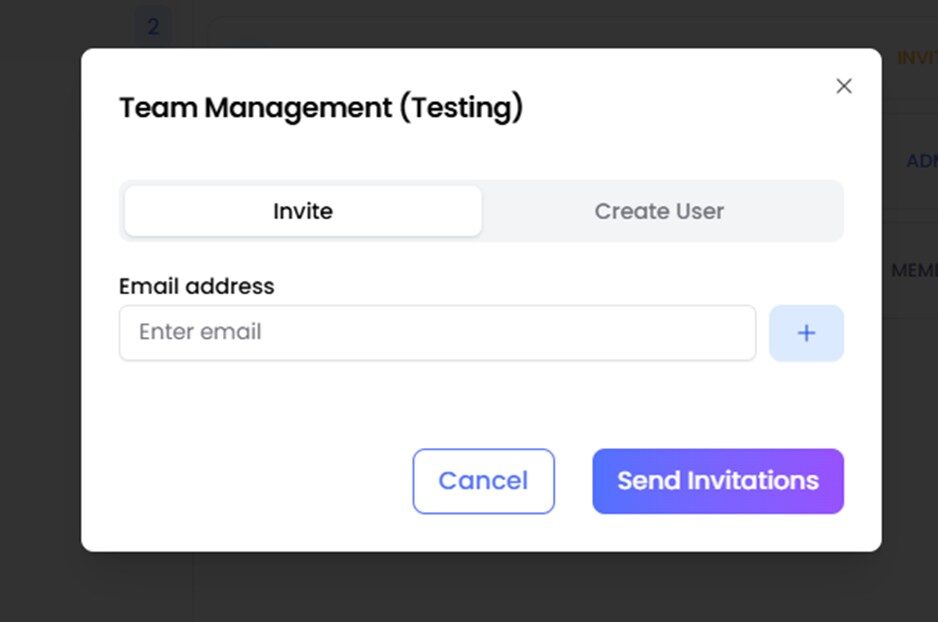
- Click Invite to add Students.

Step 5 — Create User (Student Account)
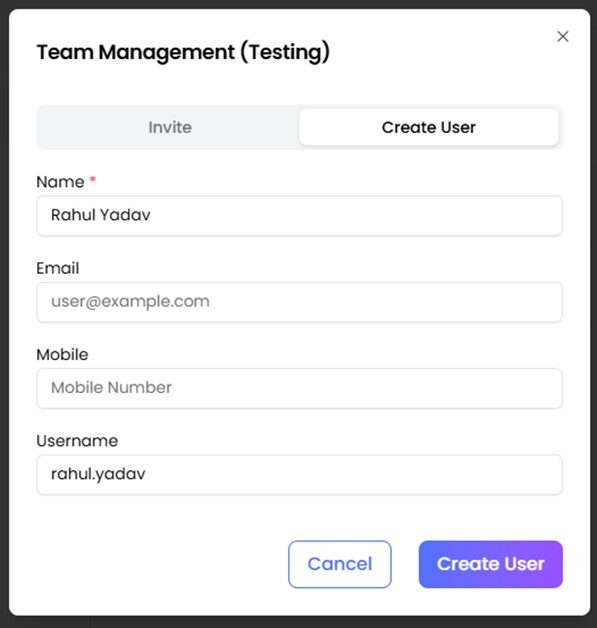
- In the Team Management window, click Create User.
- Enter the Student’s Name (e.g., Rahul Yadav).
- Leave Email and Mobile blank (do not enter anything).
- The Username is generated automatically.
- Click Create User.
Step 6 — Confirmation & Credentials
- After creation, the student will appear as a Member in your team.
- The Username and Password will be sent to your registered email address.
- Store these credentials in your Excel sheet and share them with the student.

Rules & Restrictions
- Each student must use only their own Username and Password.
- Students should not share their credentials with anyone.
- All student accounts must be set to Member only, not Admin.
- Keep the Excel credentials list secure and accessible only to authorised personnel.
Example: Credential Storage Table
| Student Name | Username | Password |
|---|---|---|
| Rahul Yadav | std1 | Std1@9553 |
Tip: Keep your Excel sheet updated whenever you create a new account so that you can quickly help a student log in when needed.


